
Frequently asked questions
How to log in to the member portal
To log in to the member portal, you can follow the steps below:
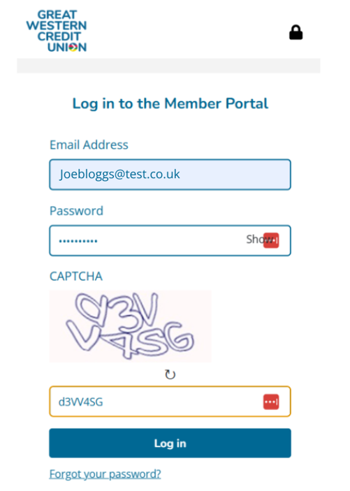
Step 1: Log in
Click the menu button in the top right and then the "log in" button
Enter your:
• Email address
• Password
• CAPTCHA code shown on screen
Then click 'Log in'.
Step 2: Send verification code
On the next screen, click 'Send verification code'.
Please do not click 'Continue' at this stage.
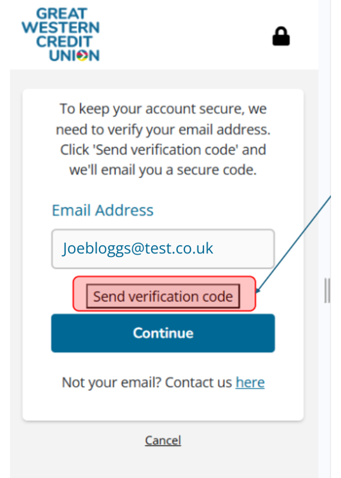
After selecting 'Send verification code', the page will refresh. You may briefly see a screen displaying your email address and a 'Continue' button. This should disappear after a few seconds and automatically move you to the next step.
If the page doesn't progress automatically after a few seconds, please get in touch.
Step 3: Verify your email address
We'll send a verification code to your email inbox.
Once you've received it:
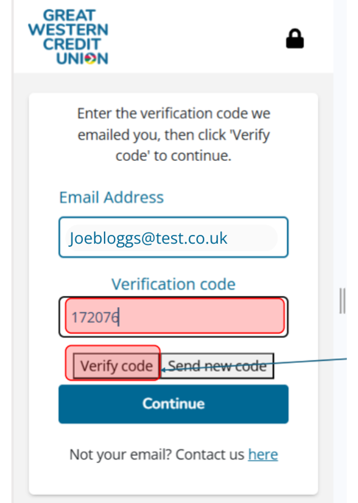
1. Enter the code into the 'Verification code' field.
2. Click 'Verify code'.
Don't click 'Continue' on this page. Selecting 'Verify code' is what allows you to move to the next step.
Step 4: Access the member portal
Once your email address has been verified, you'll see a confirmation screen.
Simply click 'Continue' to login to the member portal.
Still having trouble?
If you've followed these steps and can't log in, please get in touch and we'll be happy to help.
The most common issue is clicking 'Continue' instead of 'Send verification code' or 'Verify code'. Make sure you follow the buttons listed above and you should be logged in successfully.